If you are getting the "No Dongle Found" issue after updating your Advantage.
1. Reinstall Advantage with your dongle unplugged. Then plug the dongle back in and launch Adv to see if the issue is resolved.
2. Try different USB Ports.
3. Register the .dll file
Determine which dongle you have. Plug it in and navigate to "Device Manager"
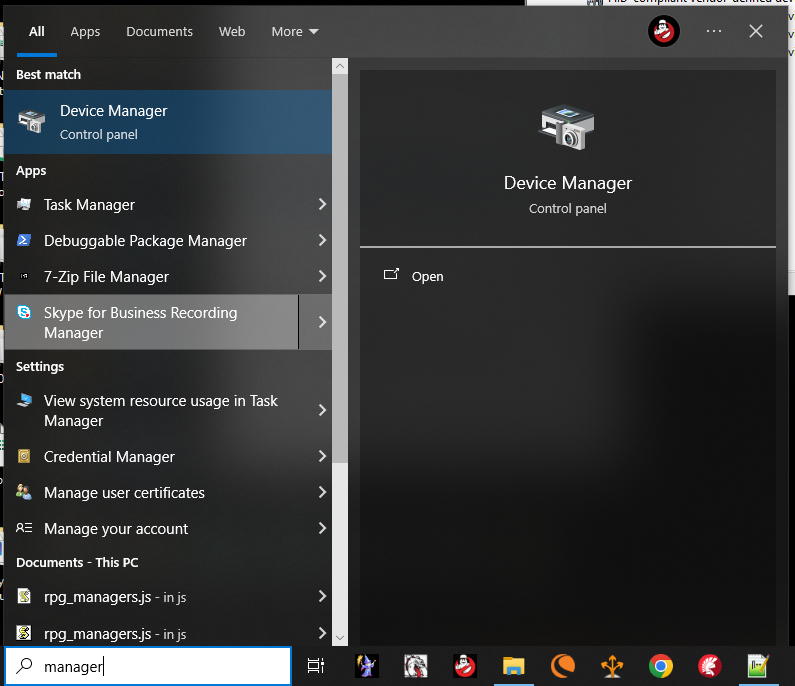
Open Device Manager by typing "Manager" into the search bar at the bottom of your screen. Click on it in the list that appears. If you do not have this option you can also right click on the windows logo bottom left corner of your screen and select "Device Manager" from there.
Inside of Device Manager, we want to locate the USB Dongle which is located under "Human Interface Devices" and "USB Input Device" Right click USB Input Device and select Properties then look at Events tab.
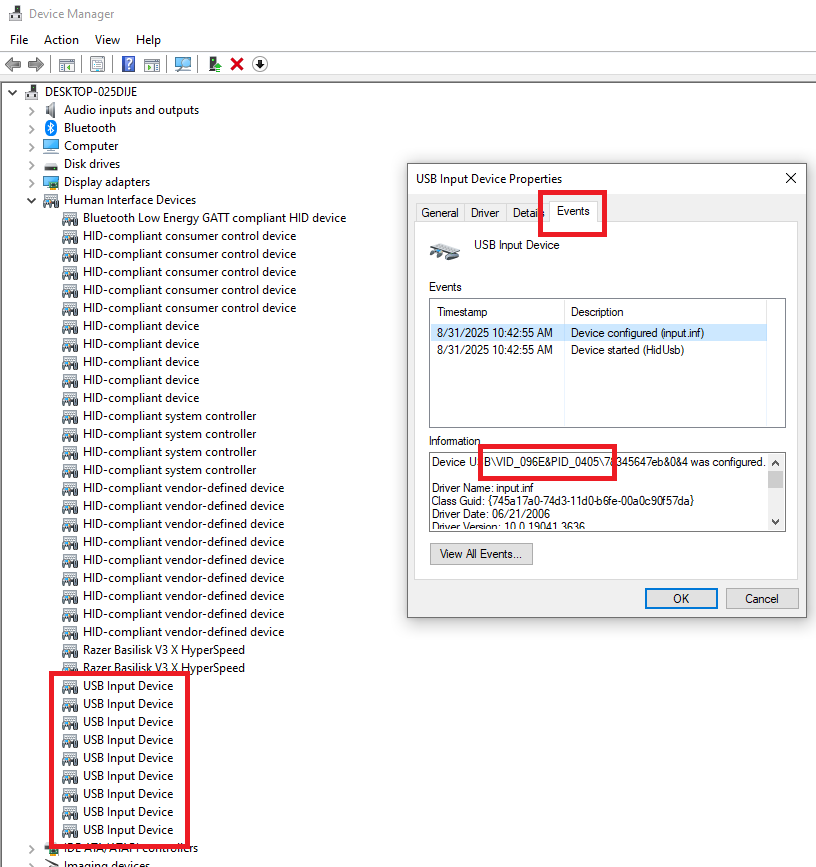
You are looking for one that reads VID 096E and either PID 0403 or 0405. Once found, run the command shown below for which one you see on yours.
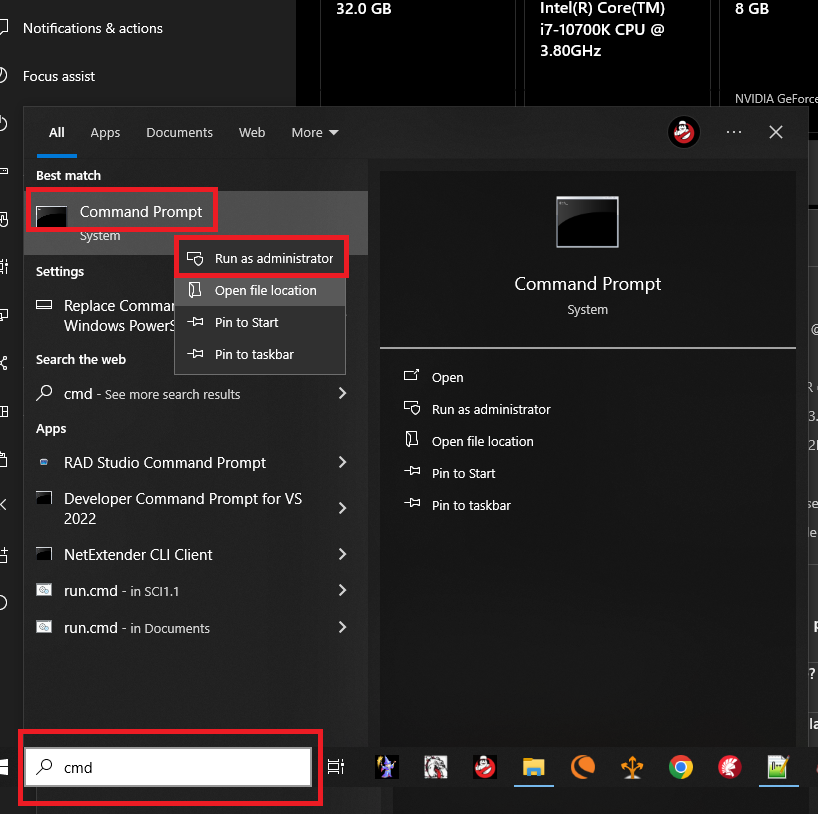
Open Command Prompt by typing "CMD" in the search bar Right-Click to run as Administrator. Then paste the appropriate command shown below.
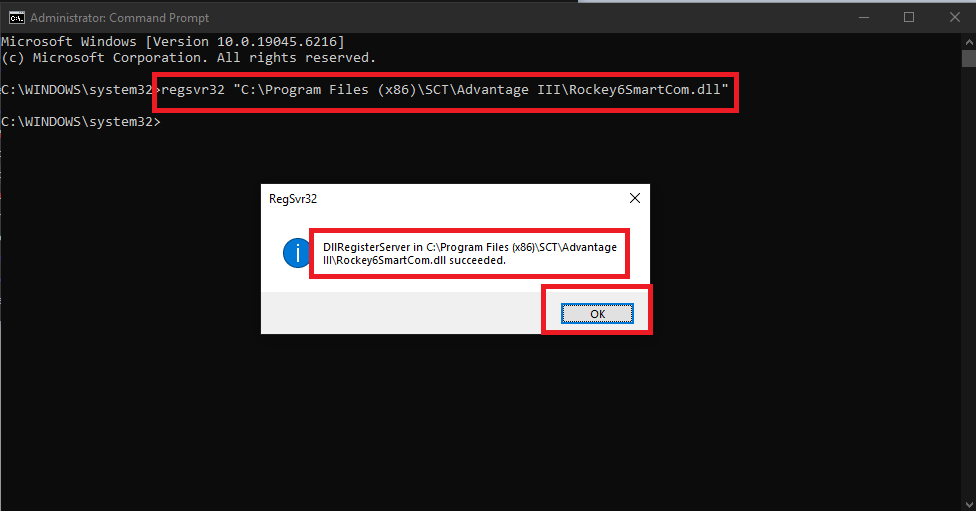
Copy and paste the appropriate command shown in red below into your CMD Prompt Window. You should now be able to open Advantage without the error popping up.
32 - bit operating system:
0403: regsvr32 “C:\Program Files\SCT\Advantage III\RockeySmart.dll”
0405: regsvr32 “C:\Program Files\SCT\Advantage III\Rockey6SmartCom.dll”
64 - bit operating system:
0403: regsvr32 “C:\Program Files (x86)\SCT\Advantage III\RockeySmart.dll”
0405: regsvr32 “C:\Program Files (x86)\SCT\Advantage III\Rockey6SmartCom.dll” (99% of the time you will use this command) (Copy the Text in RED and double-check there are no extra spaces when you paste it into the CMD Prompt)
(You do not need to unplug the dongle while running the command - Make sure the Command Prompt is run as Admin. As shown below, the CMD prompt will be labelled Administrator: Command Prompt if they ran it properly.)
How can I tell if my system is 32 or 64 bit?
There are 2 ways.
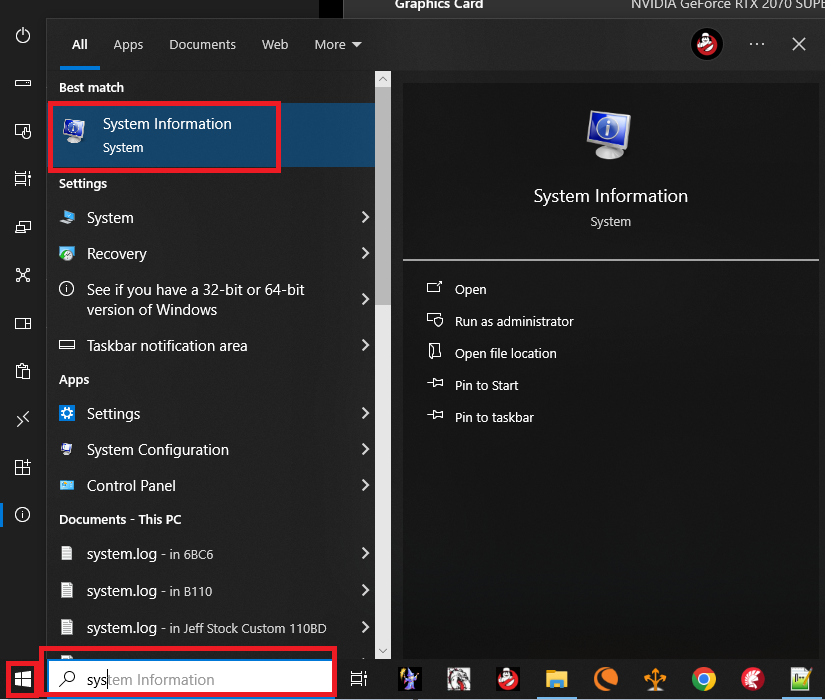
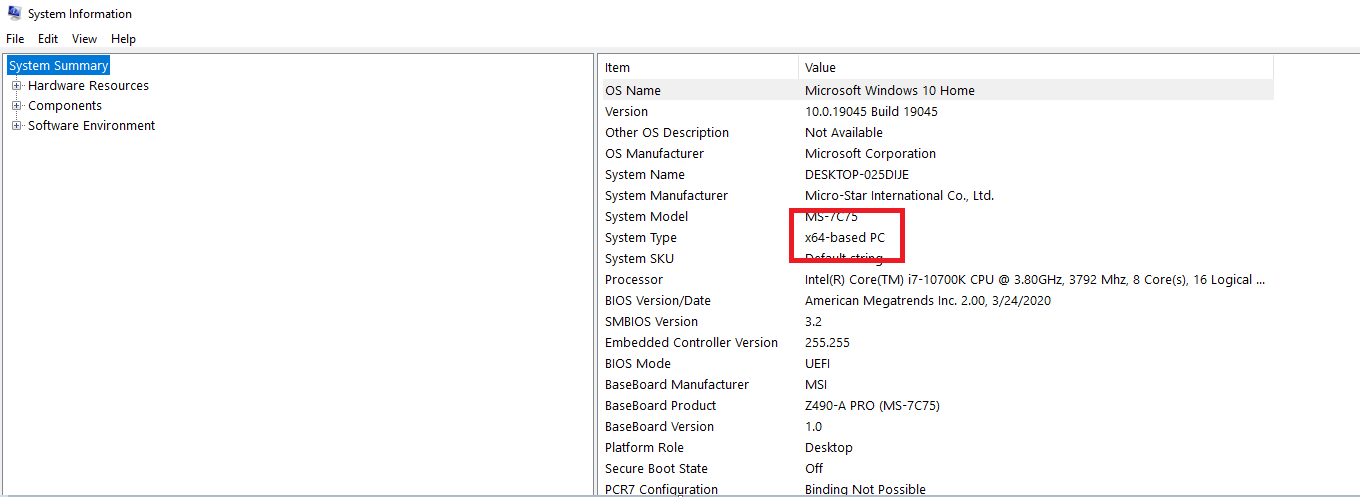
1. Type System Info in the Search bar at the bottom left corner of your windows and select "System Information" when it pops up. If you dont have a search bar you can also right click the windows logo in the bottom left corner of your screen and select "System Information" there.
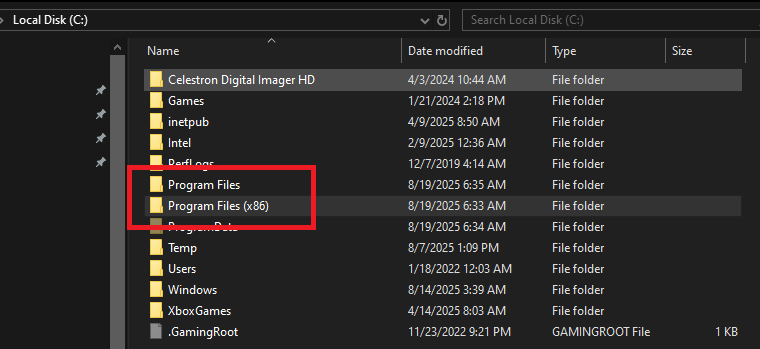
2. Open My Computer and Navigate to your C: Drive if you see 2 "Program Files" folders with one that says x86, then you have a 64-bit system. If you only see 1 folder called Program Files then you have a 32-bit system.